Getting started
Setting up takes about five minutes and needs no call with us.
Your account
On a brand-new installation the first visit shows Set up StellaQuin: your name, email and a password of at least 10 characters. That account is the owner of your organization. If someone invited you, open the link in their email instead: it asks you for a password and signs you in, already part of their organization.
After that, every visit shows Sign in. Forgot your password? emails a one-time reset link to the address you type, if it has an account.
Connecting Google
- Open Locations in the left-hand menu.
- Press Connect Google. Google's own sign-in page opens in the same tab. StellaQuin never sees your Google password, now or later.
- Sign in with the Google account that manages your Business Profile (an owner or manager of the locations; see Setting up your Google Business Profile). If you have several Google accounts, make sure you pick the right one.
- Google lists what StellaQuin asks for: to manage your business listings. Press Continue (or Allow). Allow everything on that screen; without it, Google doesn't grant lasting access and you'll be asked to try again.
- You come back to Locations. The panel at the top shows a green light, "Connected as" your Google address, and how many locations were found. Below it, every location the account manages appears with its rating and the last 30 days of reviews.
The connection is to the Google account, not to one location. Every location that account manages is found, and any location you add on Google later appears here by itself within ten minutes.
If Connect Google isn't shown, this StellaQuin is still waiting on Google's approval for its connection. Meanwhile Try it with sample businesses lets you use everything with made-up businesses and reviews.
The Locations page at a glance
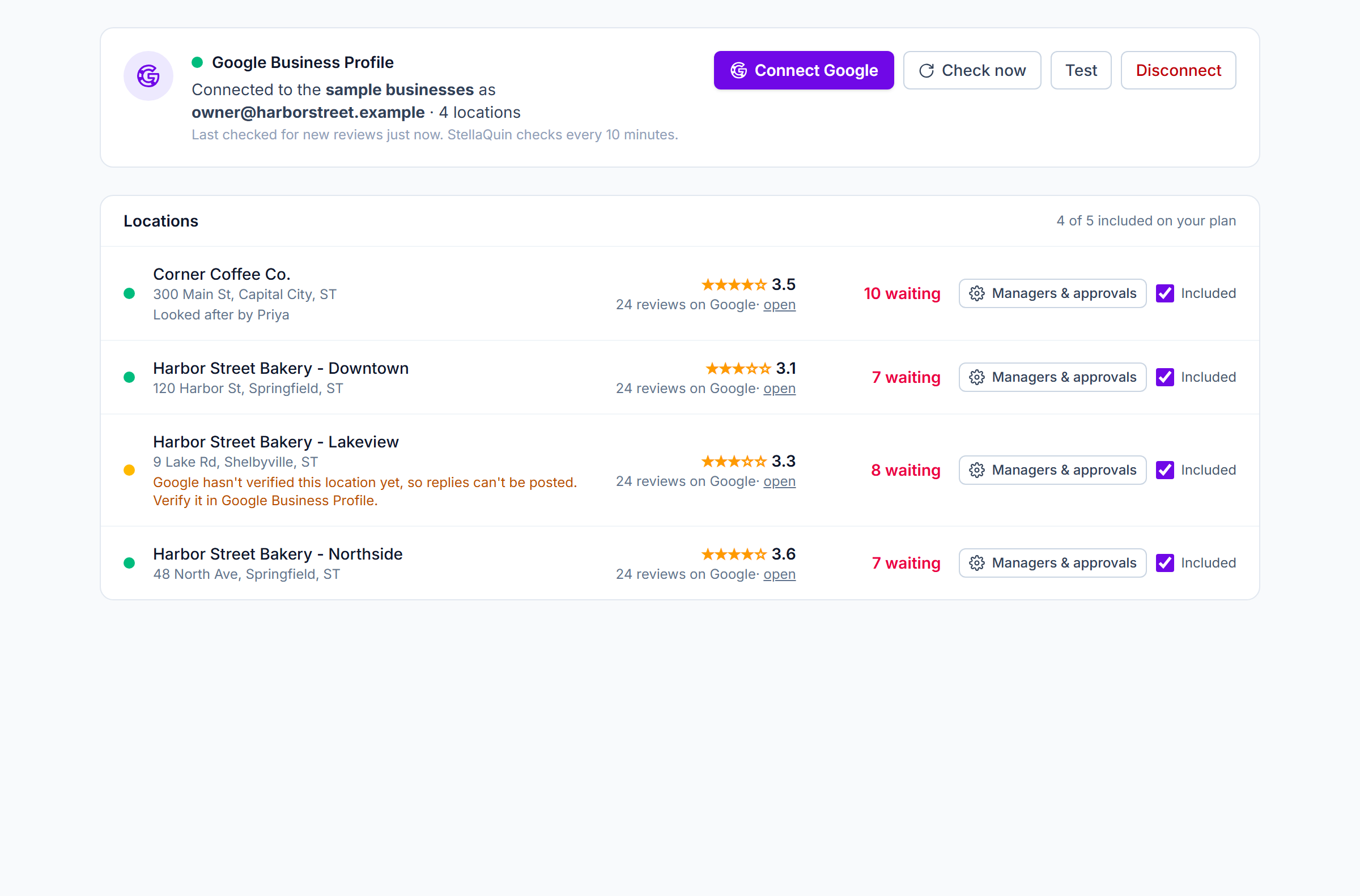
The Locations page with the sample businesses: the Google connection at the top, every location beneath it.
- The light on the connection: green, connected and working; red, Google refused the connection (the line beneath says why; Reconnect usually fixes it); gray, not connected.
- Check now asks Google for new reviews right away instead of waiting for the next ten-minute check. Test asks Google who the connection is, and updates the light. Disconnect removes the connection and everything StellaQuin stored from Google (see Your data).
- Each location's light: green, verified and replies can be posted; amber, Google hasn't verified it or someone else claims it, so replies can't be posted yet (the line beneath says what Google wants you to do); red, StellaQuin couldn't read it on the last check.
Inviting your team (optional)
Open Team, enter a person's email and name, choose a role (admin, location manager or viewer), and press Send invite. They get an email with a link that works once and expires in 7 days; the same link is shown to you to copy. For location managers and viewers, then open Locations, press Managers & approvals beside each of their locations, and tick them. See Accounts and your team.
Your first reply
- Open Reviews. The list shows every location's reviews, the ones still waiting for a reply at the top.
- Pick a review. It opens on the right with the reply box beneath it.
- Write your reply and press Post reply. It goes to Google as the business. Google checks replies before showing them, so the review shows Waiting on Google's check for a few minutes, then Live on Google.
Everything about the inbox is in The review inbox.
Checking the connection later
The Locations panel shows when StellaQuin last checked Google and whether the connection is working. If Google ever stops accepting the connection (for example because the Google account's password was changed, or StellaQuin was removed in the Google account's settings), the light goes red, the reason is shown, and Reconnect Google fixes it; nothing else needs doing.